Creating Testing Sections
Creating Testing Sections (Step-by-Step)
1. Navigate to https://test.arktest.org/admin

There are 2 ways to create testing sections. You can either 1) Duplicate a class as a testing section or 2) Create a unique testing section.
2. To duplicate a class as a testing section. Click the "Classes" button in the column on the left hand side of the screen.

3. From your class list, find the class that you wish to duplicate as a testing section and click the "Duplicate" button.

4. Confirm your selection and select your subject area(s)

5. Select the assessment(s) for your class. Please Note: Theology will default to only an English option. If you need, please request a Spanish digital test for Students or Teachers by emailing the ARK Help Desk at help@arktest.org or submit a help ticket before completing this step.

6. Once you've chosen your assessment, click the "Create Testing Section" button.

7. The specifics of the testing section will then populate on your screen. Click the "Students" tab to review the student list in the testing section

8. To create a unique testing section, navigate to the testing sections tab.
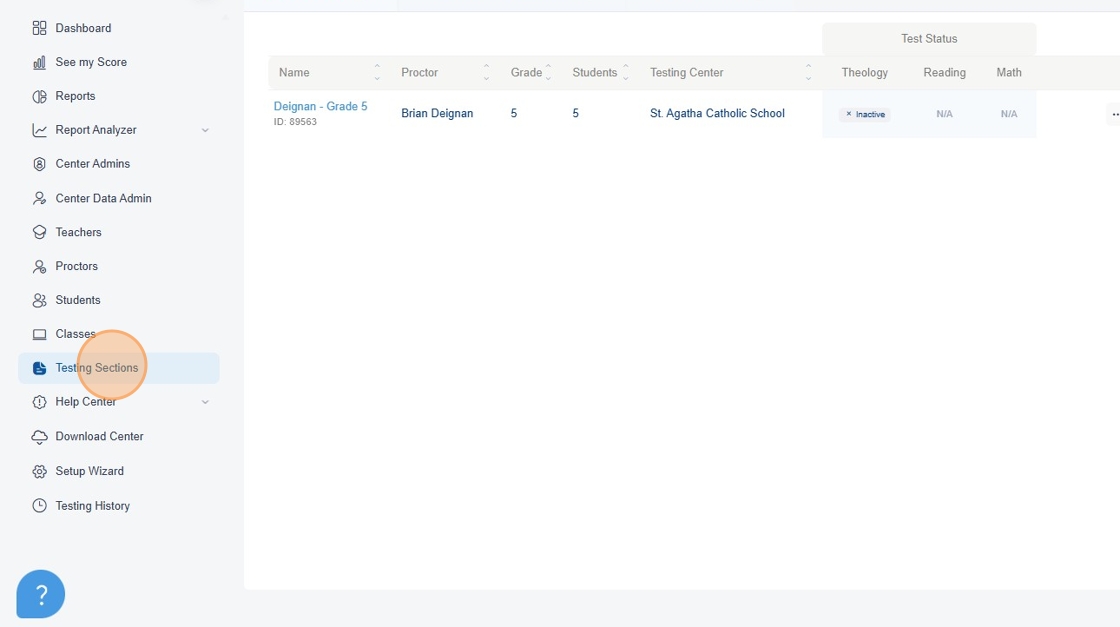
9. Click the "+New Testing Section" button in the top right hand corner of the screen.

10. Select the Grade Level
Note: The top 2 selections for Diocese and Testing Center will not be able to be changed as these are pre-set.

11. Select your Subject Area.

12. Select your Assessment. For theology, select either English or Spanish.

13. Create a unique name for your testing section

14. Select a proctor from the drop down list

15. Click the save button.

16. Your testing sections now will be listed under the testing section tab
