Preparing Student Login Credentials

Preparing Student Login Credentials

There are two way to distribute Student Login Credentials depending on how you Rostered your students.


Test Ticket Method (No Student email, or student email cannot receive external mail even if whitelisted)


1. Navigate to "Testing Sections"

2. Click "Testing Dashboard" for the Section of interest


3. In the Testing Dashboard, Click "Print Passwords"
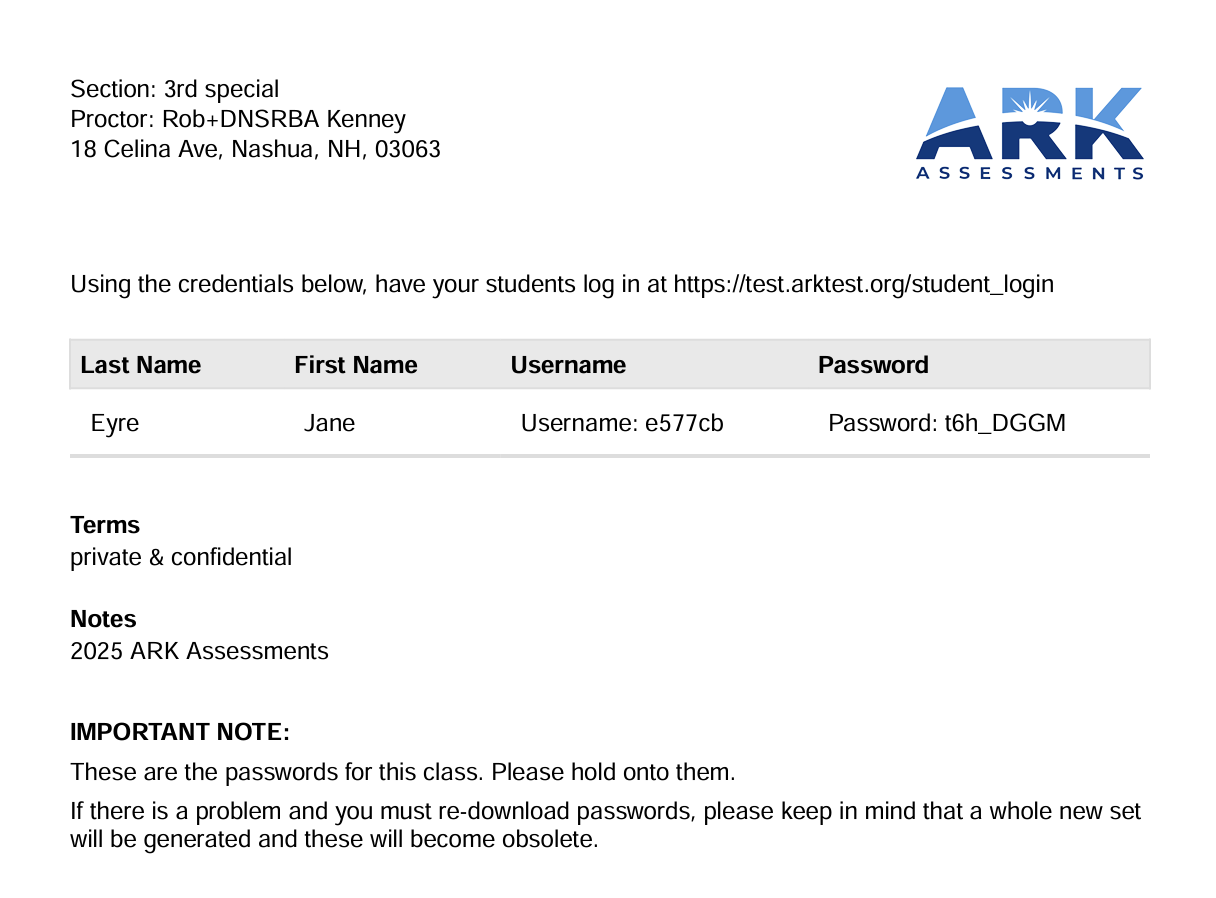

The resulting list will be a PDF including each student's ARKID and Password for Login. New this year is that each student has a unique password.


"Send Login Link" Method 

When Student Emails are included in Rostering and the Student email can receive email from "no-reply@arktest.org", There are two options to send login credentials to students. These emails will include a link directly to each individual student's test:

1. If ALL students (or Teachers in a Teacher Testing Section) have an email address, the global send button will activate an email to EACH individual student with their unique link.

2. If only some students have an email address, or students who lose their original email, the individual method allows the proctor or Center Admin and Center Data Admins to send an individual email to that specific student or teacher.

    • Related Articles

    • Administering the Test

      NOTE: ARK Theology is NOT a timed test. Timers and Test length are for your Reference as a Proctor. Students can take as much time as you allow to complete their test. Navigate to your Testing Dashboard for the Testing Section you are about to ...
    • How to remove a student from a testing section

      If you are a teacher or a center admin and you need to remove a student from a testing section, please use the following steps: NOTE: Once a student has started the test, they CANNOT be removed. For absent students or students that need more time, ...
    • How to ADD an unassigned student to a testing section

      If you are a teacher or center admin who needs to ADD an unassigned student to a testing section, please follow one of the three following methods: Method #1: 1) Click the "Students" tab on the right side of the screen 2) Click the ‘Filter’ button at ...
    • Proctoring using the NEW 2025-2026 ARK User Interface (after October 22nd 2025)

      We're proud to introduce a new look to the ARK system. Most functionality is the same as in previous years. But if you are still testing, here is a quick primer on running testing: To access your Sections, you still click on "Testing Sections" in the ...
    • Testing Day: Proctor Script

      Before beginning, click “Open Login” for the Testing Section at test.arktest.org. Student computers should be at the Student Login screen: test.arktest.org/student_login. Notes on the Student Experience All ARK tests are Multiple Choice and ...