Rostering Dedicated Proctors
Adding Proctors to Your Roster (Step-by-Step)
1. Navigate to https://test.arktest.org/admin
Note: Teachers double as proctors and will NOT show in the Proctors list. Therefore, this help article is to add any dedicated proctors that were not added during the rostering teacher step.
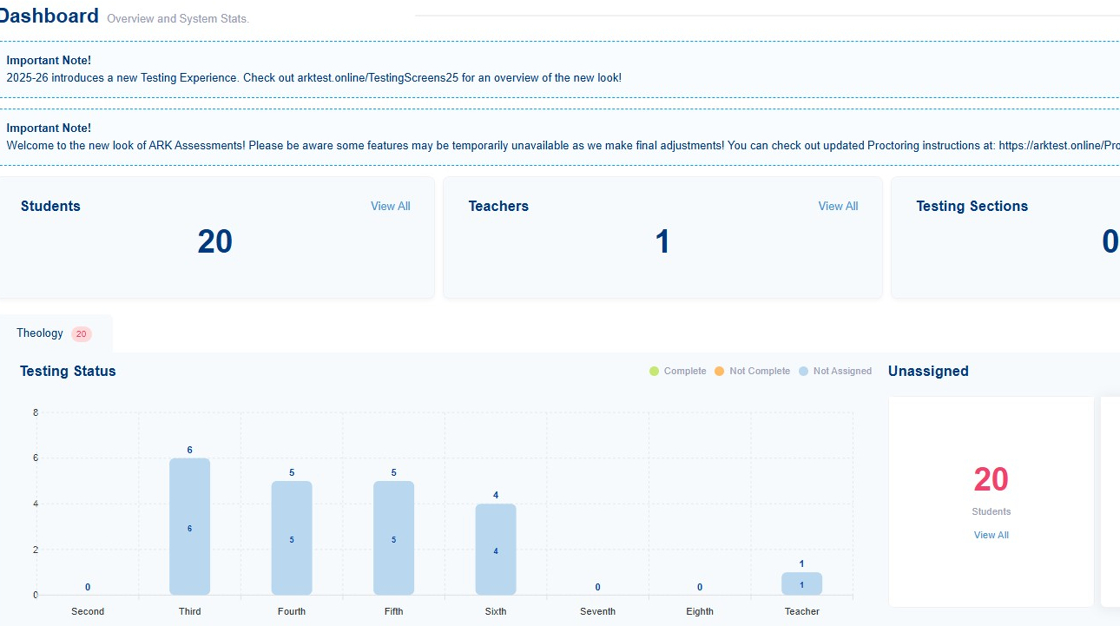
2. Click the Proctor button from the column on the left hand side of the screen.

3. Once on the Proctor page, click the plus "+New" button.

4. Fill out the required information for the proctors. That is: first name, last name, email, sex, and Catholic. When you're finished, click save.

5. Your new proctor will now appear on the list.

Related Articles
Rostering Teachers
<br> Rostering/Uploading New Teachers (Step-by-Step) 1. From the center admin dashboard, navigate to the teacher tab on the left hand side of the screen 2. Once on the teacher screen there are two ways to ...
Parish Rostering: Shared Grades
If your testing center has mixed grades in the same classroom and you are teaching ALL students in that class the same grade-level material there is a workaround to allow testing. Determine what grade-level material you are teaching Before Rostering ...
Rostering Students
Please ensure you have your Student Data available as described in 'Preparing your Data'. Adding Students to a Roster (Step-by-Step) 1. Navigate to https://test.arktest.org and login. This will bring you to the dashboard page. 2. Click on the ...
Parish Rostering: School Student IDs
New this year (2024-2025), we have implemented a new feature. In the student import template, there now MUST be a School Student ID for the template to upload into the ARK tool. We recognize that any Parish that is testing will not have school ...
Prepare Your Data
This help article covers the very basics of data preparation. If, after reading this article, you still have questions, please refer to the other help articles listed for more in depth explanations. If the help articles listed still do not answer ...