Teacher Reporting Dashboard

Teacher Reporting Dashboard


The Teacher Dashboard is available only for the assigned religion Teacher, assigned Team Teachers, the Center Administrator and the Diocese Executive. This post will guide you through the key components of the report.


The Summary Diagnostic
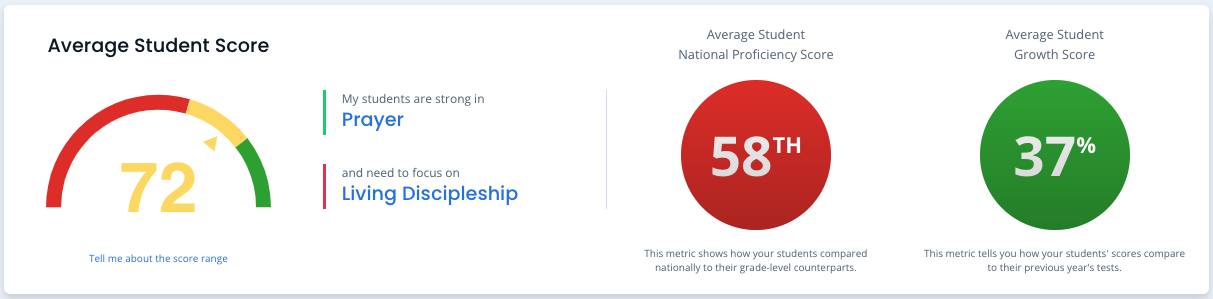


Here you see a summary of your students' strongest and weakest Domains, along with the average Knowledge score, National Percentile, and Belief & Behavior alignment score of all students you taught this year.

Class Overviews:



The Class Overviews show a listing of your class(es), including average student score, and the Breakdown shows the percentage of students scoring in 5 score ranges (1-19 red, 20-39 orange, 40-59 yellow, 60-79 pale green, 80-100 green.) You will also see the strongest and weakest Domain for each class. Clicking the pivot reveals the top-3 missed questions in the class. If you have more than one class, click the class name to view its detailed results.

Student Scores
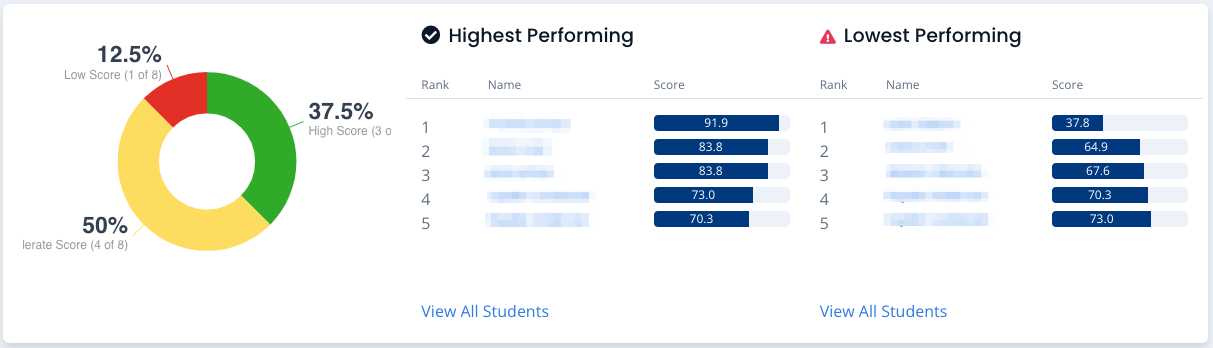


Here you will see the percent and count of all your students scoring in 5 score ranges (1-19 red, 20-39 orange, 40-59 yellow, 60-79 pale green, 80-100 green.) Then the students are listed by highest and lowest scores. Clicking “View All Students” will show your entire roster ranked top to bottom or bottom to top. Click on any name to go to that student’s individual results.

Domain Scores
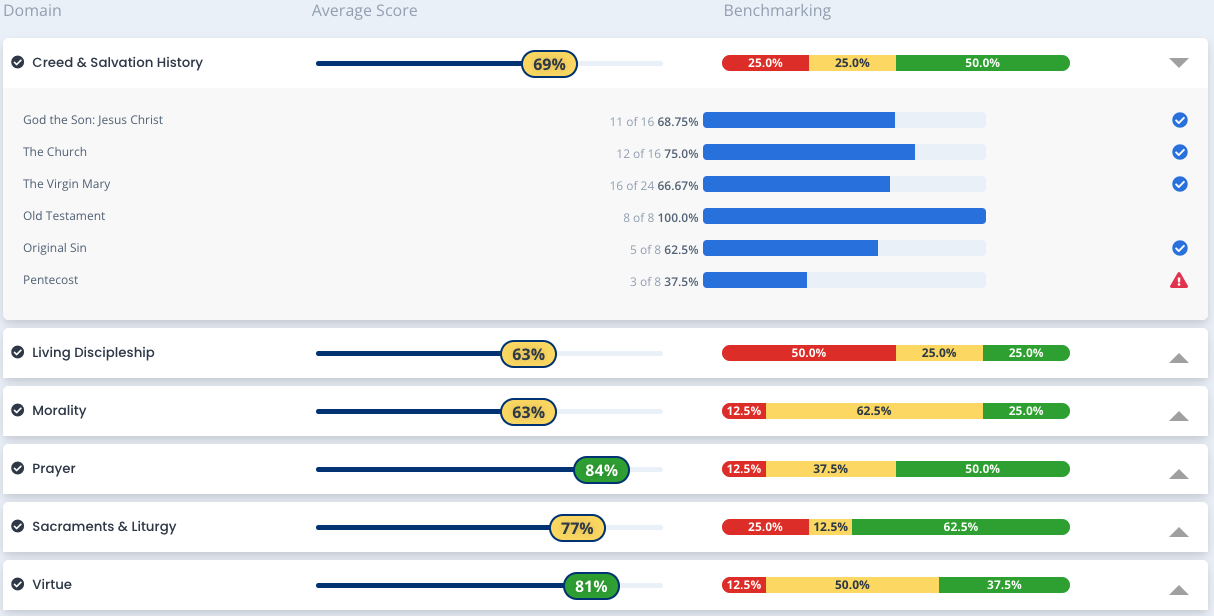


Here, the class’s knowledge and belief alignment scores across the six tested Domains are summarized. This includes a count and percent of students who scored 1-19 red, 20-39 orange, 40-59 yellow, 60-79 pale green, 80-100 green. When you pivot the Domain title with the button, you can see the topics covered and the students’ correct response rate.

The Topic list per Domain helps you see the alignment to your curriculum, look for opportunities to improve and celebrate efforts that have resulted in a good understanding of our Faith. These areas also help support accreditation efforts and long-term improvement plans for you and the school. 
A blue check mark indicates a proficient level of understanding and shows you where you can go deeper. A red hazard symbol indicates an area for improvement.

Lesson Recomendations


This section includes two free resources per class to support that class based on the its weakest Domain on the ARK assessment. You can view these in a new window, or email them as needed.


    • Related Articles

    • Diocese Executive Reports Dashboard

      The Diocese Executive Dashboard is available only for the assigned Diocese Executive. This post will guide you through the key components of the report. Summary Diagnostic Here you see the average knowledge score of all Students in your diocese ...
    • Reporting FAQ

      Q. When will I get my results? A. You will be able to see your results a few weeks after the national testing window closes (Mid-may) Q. How do I print my results? A. To print an individual score report, go to that student or teacher report and click ...
    • Teacher Performance Report

      The Teacher Performance Report is available only for the Center Administrator and the Diocese Executive. This post will guide you through the key components of the report. Teacher Results Here you see a summary of the selected teacher’s knowledge ...
    • Center Administrator Reports Dashboard

      The Center Administrator Dashboard is available only for the the Center Administrator and the Diocese Executive. This post will guide you through the key components of the report. School Snapshot Here you see your school’s Catholic Identity Score, ...
    • Academic Reporting: Parent Report Explainer

      The attached document can be printed and shared with the individual student report to help explain the content or the report and what is being measured for each student.
